
From download to your first filed report
PingPair automates latency and throughput testing on your network — configurable sweeps, multi-client load tests, or a single-PC run — and writes a ready-to-file Word / Excel / PDF report from every test. This guide takes you the whole way.
01 Install
PingPair ships as a self-contained Windows build — no Python or other dependency to
install. The bundle carries its own runtime plus fping and iperf3.
- Download the latest release (a
.zipfrom GitHub Releases). - Right-click the
.zip→ Extract All… to a folder you can write to (e.g. your Desktop). Do this on both machines. - Open the extracted folder and run
PingPair.exe.
SmartScreen warning? The build is unsigned, so Windows may show a "Windows protected your PC" prompt on first run. Click More info → Run anyway. To be sure you have the genuine file, verify its SHA-256 against the checksum file published with the GitHub release.
Administrator. PingPair needs to run elevated — it sets static IPs and adds
firewall rules through Windows' own netsh, and it asks before every change. It will
request elevation (a UAC prompt) automatically when you launch it.
02 Connect the two PCs
PingPair measures the link between two machines: one plays Server, the other Client. Connect them on a dedicated point-to-point LAN.
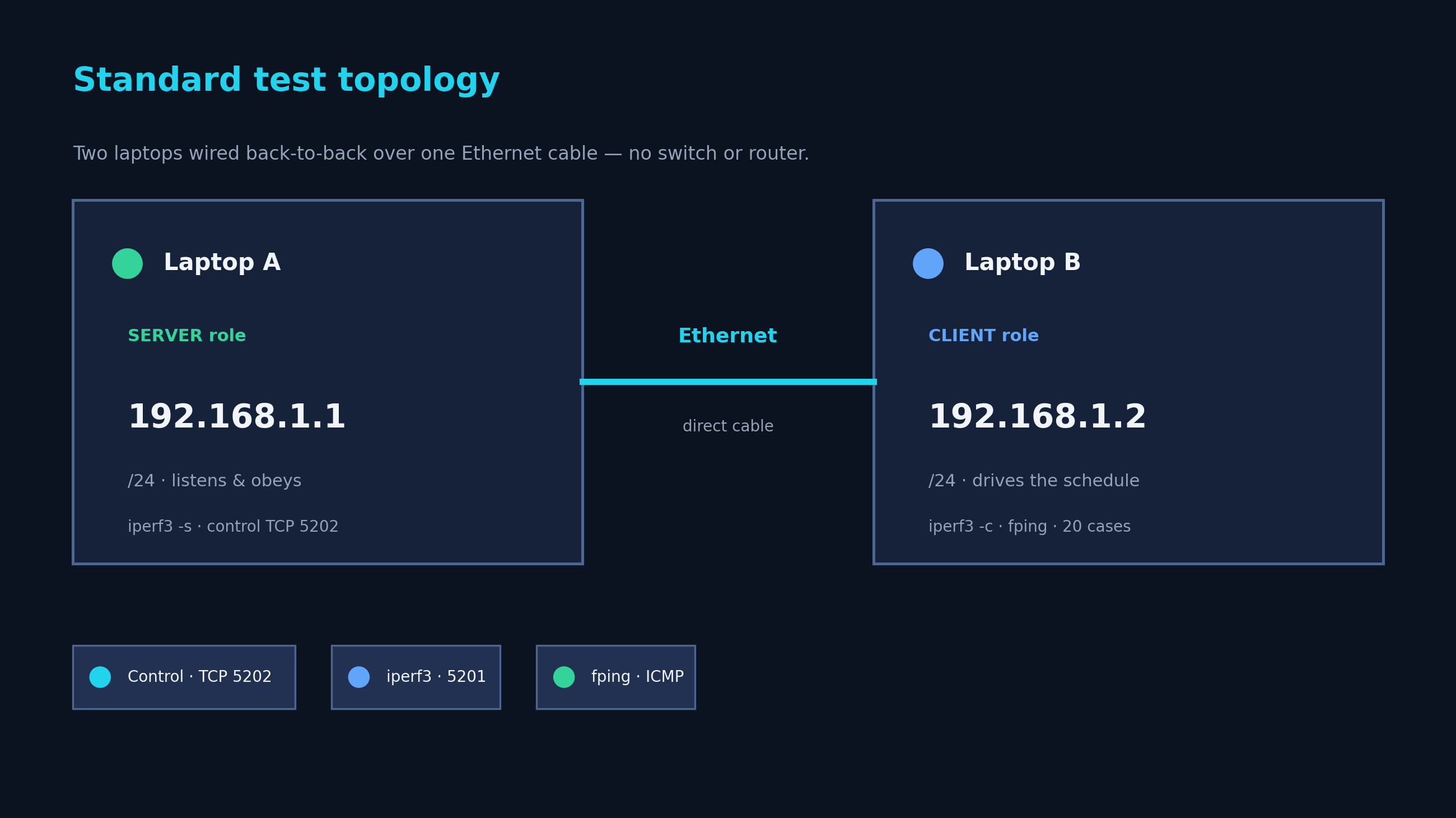
192.168.1.1, Client 192.168.1.2.- Two physical machines: join them with a single Ethernet cable (a crossover cable isn't needed on modern NICs) or through a small switch.
- Two virtual machines: attach both to the same internal / LAN-segment virtual network — not NAT, not Bridged.
03 IPs & firewall
Each side needs a static IP on the test subnet, and Windows Firewall has to allow the test traffic. PingPair's Setup tab checks all of this for you and offers one-click fixes — it never changes the host silently.
| Role | IPv4 | Subnet |
|---|---|---|
| Server | 192.168.1.1 | 255.255.255.0 |
| Client | 192.168.1.2 | 255.255.255.0 |
- Launch PingPair on each machine. On first launch it auto-detects its role from the bound IP (and falls back to a safe default with a heads-up banner if neither matches).
- Open the Setup tab. Any row in yellow or red has a fix button — each one shows
the exact
netshcommand it will run and asks for confirmation:- Set the correct IP — assigns the role's canonical static IP.
- Firewall rules — allows ICMP echo, iperf3 (5201), and the control channel (5202).
- Disable Wi-Fi — if Wi-Fi is live on the test subnet it can corrupt the measurement; this turns it off and re-enables it when you close the app.
- When every row is green on both machines, you're ready to run.
Need a different addressing scheme (e.g. a 10.x.x.x LAN, or a router between the two
sides)? The Setup tab has a per-PC custom IP override, and the Config tab lets you
change the Server/Client IPs, ports, protocol, payloads, bandwidths, and durations — then save it
as a reusable profile.
04 Run a sweep
- On the Server, the listener starts automatically — leave the window open. It shows Listening on 192.168.1.1:5202.
- On the Client, open the Single-Client tab. You'll see the case grid (payload × bandwidth, 20 rows by default), each row ticked. Keep them all for the full sweep, or untick rows / use the per-payload and per-bandwidth quick toggles to run a subset.
- Press Run full sweep. The Client connects to the Server and walks every case in
sequence — latency and loss via
fping, throughput / jitter / loss viaiperf3— filling in the table live, with charts and a duration-aware ETA. - When it finishes (≈11 minutes for the default 20 cases), PingPair saves the report set and shows a summary. Press Stop any time to end early and cleanly.
Continuous (multi-segment) mode runs the same grid across several physical segments in one walk-through — e.g. cab-to-cab on a train — and rolls them all into one consolidated report with cross-segment comparison tables.
05 Read the report
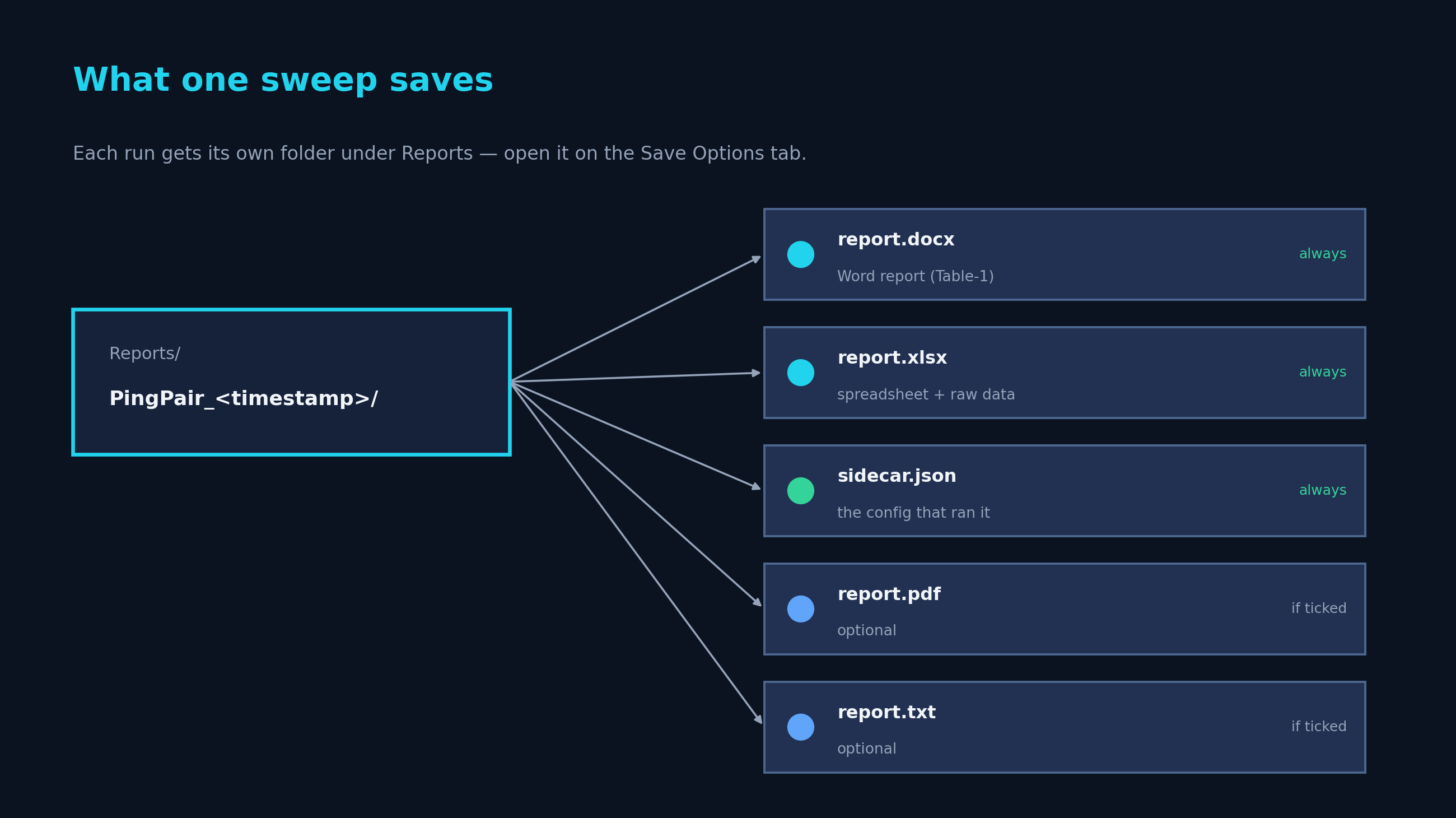
Every sweep writes a self-contained folder under Reports/ with a Word document, an
Excel workbook, and a .json sidecar (PDF and TXT optional). The headline is the
8-column performance table; an analysis appendix adds per-metric charts and breakdowns.
- Performance Metrics table — one row per case: payload, bandwidth pushed, throughput received, jitter, loss, and min / avg / max latency.
- Per-case detail — status, return codes, error notes, and the exact
iperf3/fpingcommand used for that case. - Title block — run ID, timestamps, both IPs, tool versions, plus any test-record metadata you filled in (technician, customer, hardware serial, environment, record ID).
- Analysis tab — load past runs back in to overlay, compare, and diff them, then export a comparison report.
See a full 20-case example: sample report (PDF) · Word (.docx).
06 Load one server with many clients
The sweep answers “how does this link behave across the grid?”. The Multi-Client tab answers a different question: does a server still hold up when a floor of workstations hits it at once? It runs one manually parameterised case — payload, bandwidth, duration and a number of clients — driving all of them from this machine as parallel streams.
It is client-only: there is no PingPair on the far end and no role gating, so it works in the Server, Client and Loopback roles alike. The page follows the order you actually work in:
- Parameters — server host and port, client count, payload, bandwidth, duration, plus any extra hosts to ping alongside the throughput test.
- Can this machine make that load? — a capacity budget that turns your parameters into the real wire rate (payload plus 66 bytes of framing, a 33 % surcharge at a 200-byte payload) and checks it against the NIC’s link speed. 30 clients × 30 Mbps at 200 bytes is 1.2 Gbps on the wire, so over 1 GbE the run is blocked before it spends 30 seconds producing a meaningless number. A NIC that reports no link speed never blocks.
- Commands to run on the server — pick the server’s Linux
distribution and the tab prints the exact install, firewall and
iperf3 -slines to paste into a root shell. The firewall block opens both TCP and UDP: iperf3’s control connection is TCP on the same port the UDP data uses, and a UDP-only rule fails in a way that reads exactly like a dead server. - Preflight — pings the host, checks the port, and completes a real iperf3 handshake before you commit to a run.
- Live log — iperf3’s per-second row for each simulated client and a
[SUM]line for the whole load, with one[fping]line per second carrying that second’s reply count and min/avg/max round trip — so a latency spike can be read against the throughput from the same second.
Loopback cannot run a multi-client UDP test. The bundled Windows/Cygwin
iperf3 server fails on -u -P N for N > 1 — a
known Windows-receiver defect upstream. Against the Linux server this is built for it works
normally, and PingPair says so up front rather than letting you find out through a failed run.
07 Turn results into pass / fail
By default a report states what happened. Fill in Reference values on the Config tab and it also states whether that was acceptable.
Set a limit for throughput, jitter, packet loss, or min / avg / max latency. Throughput also supports a percent-of-offered mode, which is usually what you want: one absolute number is meaningless across a sweep that offers 10 Mbps in one case and 90 Mbps in another, whereas “at least 95 % of what was offered” holds at every step.
Every saved report then gains a verdict banner (how many cases passed, were marginal, or failed), the reference values printed beside each measured value with breaching rows highlighted, the reference table itself so the report records the yardstick it was judged by, and an exceptions table listing only the cases that breached it.
- A report holds its reference by value. Editing the thresholds later cannot retroactively re-judge a report you already saved.
- In the Analysis tab, runs judged by the same reference get a threshold line drawn across the throughput charts. Load runs with different thresholds and the line is omitted — comparing them against a single line would be a lie.
- Arm no thresholds and every report is byte-for-byte what it was before.
08 Try it on one PC (Loopback)
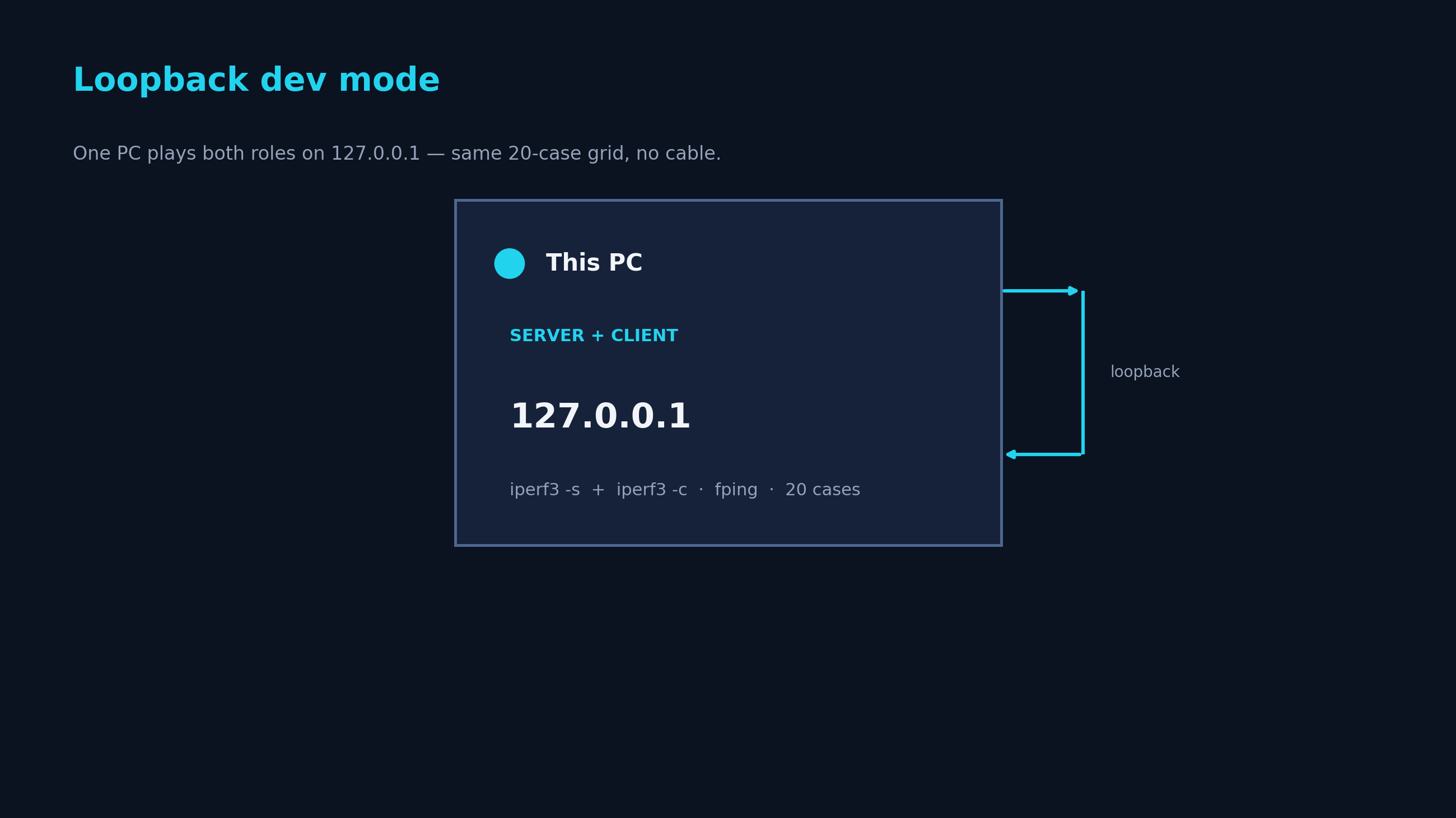
No second machine handy? Switch the role to Loopback on the Setup tab and PingPair
runs both ends on 127.0.0.1. It's the quickest way to see the full workflow and a real
report without any cabling or IP setup.
09 Troubleshooting
| Symptom | Fix |
|---|---|
| Setup tab: Local NIC IP is red (FAIL) | The static IP isn't set or the NIC is on the wrong subnet. Click the row's Set the correct IP button (it falls back to opening Windows adapter settings if it can't detect the adapter). |
| Firewall rows stay yellow after pressing Fix | PingPair isn't elevated. Close it and relaunch — accept the UAC prompt so it can add the
netsh rules. |
| Orange banner: "IP doesn't match the saved role" | The bound IP no longer matches the role (NIC reset, DHCP, moved LAN). PingPair never flips the role behind your back — either click Set the correct IP, or change the role on the Setup tab. |
| Phantom packet loss in the report | Wi-Fi is live on the test subnet and Windows is routing some packets out the wrong NIC. Use the Setup tab's Disable Wi-Fi fix (it's re-enabled when you close the app). |
| A 30 s case takes ~48 s | Expected — Windows' ~15.6 ms timer granularity stretches the per-packet interval. The progress bar and ETA already account for it. |
Sweep finished but no files in Reports/ |
Auto-save is off (the default) and you clicked Skip on the save dialog. Click Save report now on the Save Options tab — the result stays in memory until the next sweep starts. |
10 FAQ
Does PingPair phone home or collect any data?
No. It runs entirely on your local network. The only outbound request it ever makes is an optional check for its own updates against GitHub Releases — and that's it. No analytics, no accounts.
Why does it need Administrator?
To set static IPs and add Windows Firewall rules for the test traffic, via Windows' own
netsh. It always shows the exact command and asks before making a change, and it
reverts the Ethernet adapter to DHCP when you close it.
Is it free? Is it open source?
It's free to use for your own network testing. The full source is published on GitHub so you can inspect exactly what it does, but it is not open source — it's released under a proprietary license (see LICENSE), which permits use but not redistribution or modification.
How do I update?
Open the About tab → Check for updates. PingPair downloads the new build from GitHub Releases, verifies its SHA-256, swaps the install, and relaunches. Your settings and saved reports are preserved.
Can I change the test grid?
Yes — the Config tab is a full test-plan editor. Override payloads, bandwidths, duration, protocol,
IPs, ports, and fping flags, and save named .json profiles.
Still stuck? Open an issue on GitHub.