PingPair automates latency and throughput testing on your network — configurable sweeps, multi-client load tests, or a single-PC run — and turns every test into a ready-to-file Word, PDF or Excel report.
Runs entirely on your local network — no account, no telemetry.
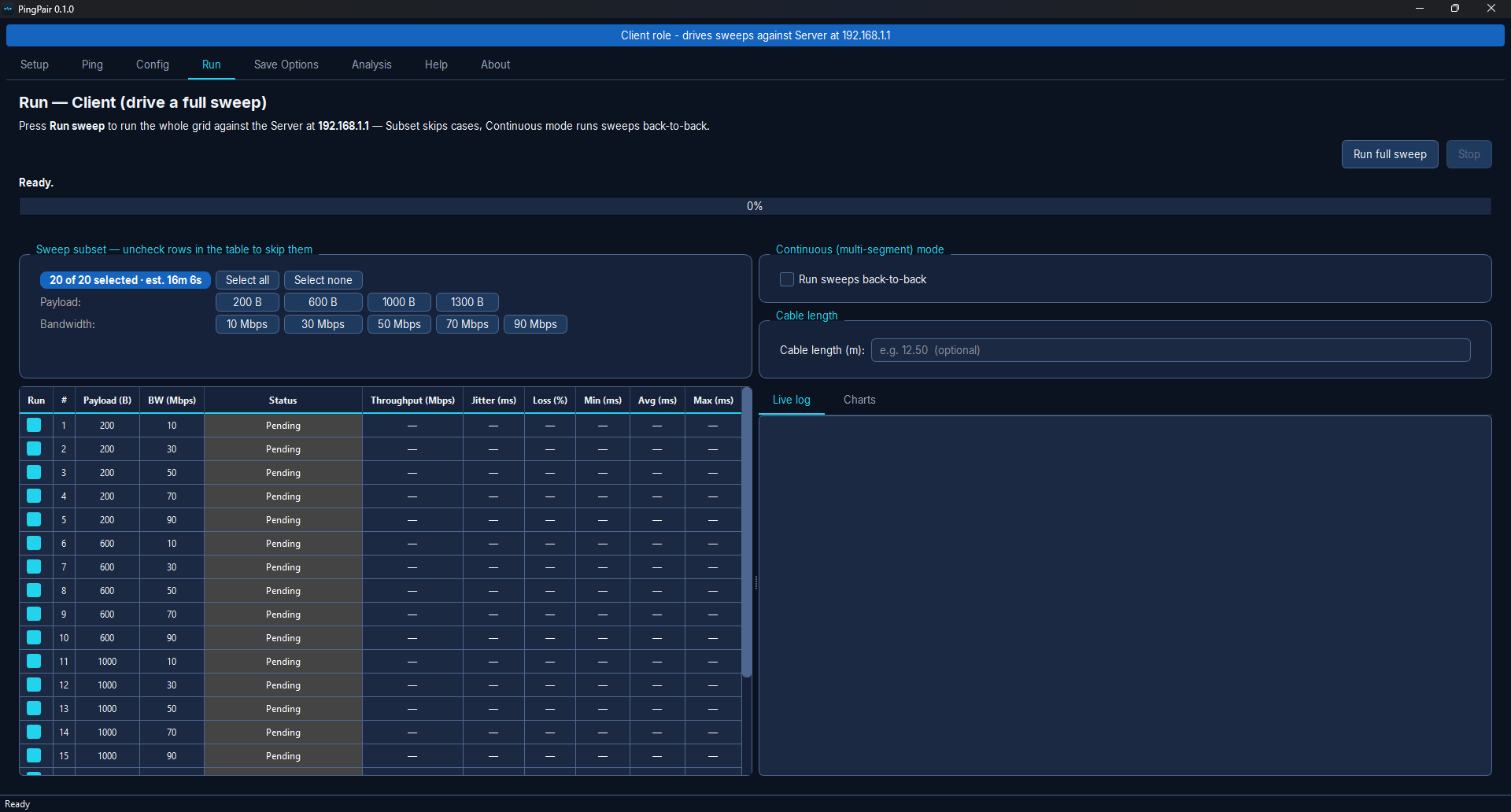
One app on both machines. Pick a role, press run, walk away.
Every payload × bandwidth combination runs in sequence — 20 cases by default, and the grid is yours to edit.
Bundled, version-pinned binaries measure latency, loss, throughput and jitter the way the test plan specifies.
Each run writes Word, Excel and a JSON sidecar — with optional PDF and TXT — matching the standard results table.
Run Server/Client across a cable, or Loopback mode on a single PC to try it with no second machine.
Built-in checks catch IP, firewall and cable problems up front — with one-click fixes, never silent changes.
Per-case charts fill in as the sweep goes, beside a paced live log of what iperf3 and fping are actually reporting.
The Multi-Client tab loads one server with a chosen number of simulated clients — and refuses a load this machine could not honestly generate.
Set reference limits per metric and every case is judged against them. Each report carries the thresholds it was judged by, so a verdict stays readable later.
Overlay past runs in the Analysis tab, export the raw numbers as CSV, and keep a library of saved test-plan profiles.
One side is the Server, the other the Client. The Client drives every case; the pulse is the measurement traveling the wire.
Launch on both PCs. The Setup tab verifies IPs, firewall and cabling, with one-click fixes when something's off.
Press Run full sweep on the Client. It walks every case in sequence, filling the table live with a duration-aware ETA.
PingPair saves a Word + Excel report (PDF / TXT optional) and a JSON sidecar — the performance table, ready to hand over.
Nine focused tabs that walk you from prerequisites to a filed report.
Every sweep produces a Word + Excel report (PDF / TXT optional). Here's a full 20-case example so you know exactly what you'll hand over — performance table, per-case detail, and the analysis charts.
Illustrative data from a point-to-point Cat6 link.
PingPair works entirely on your local network. The only outbound request it ever makes is an optional check for its own updates.
No analytics, no accounts, no data collection. Your test results stay on your machine.
Free to use for your own network testing. The full source is published on GitHub so you can read exactly what it does before you run it.
What PingPair is, what it measures, and what you need to run it.
PingPair is a free Windows desktop application that automates network performance testing. It runs configurable latency and throughput sweeps, multi-client load tests, or a single-PC run using fping and iperf3, then produces a ready-to-file Word, PDF and Excel report. It is a network-engineering tool for Windows — not a mobile messaging app.
Latency, packet loss, throughput and jitter across a configurable grid of payload sizes by bandwidth targets, each case run in sequence with no manual intervention. The default grid is 4 payloads (200, 600, 1000, 1300 bytes) by 5 bandwidths (10, 30, 50, 70, 90 Mbps) — 20 cases — and every value is editable.
Two Windows 10 or 11 machines on the same local network, usually joined by an Ethernet cable. One runs as Server, the other as Client — or, with only one PC, Loopback mode plays both roles. PingPair bundles fping and iperf3, so there is nothing else to install; it never needs an internet connection to run a test.
No. PingPair is a Windows-only desktop tool for network engineers. It is not related to any mobile or messaging app that shares the name.
Yes. PingPair is free to use for your own network testing and its full source is published on GitHub, so you can read exactly what it does before you run it. It runs entirely offline with no accounts, no telemetry and no data collection.